Validating or Compressing a MusicXML file
MusicXML Tasks validates any locally-stored MusicXML file against the MusicXML 4.0 schema. The MusicXML schema used for validation is included in the application, so the user only needs to have the MusicXML file available and enter its location in the tool.
MusicXML Tasks also compresses any XML file to a compressed file with a .mxl extension.
Validation and compression don't use the database, so no prior database setup is required for these operations.
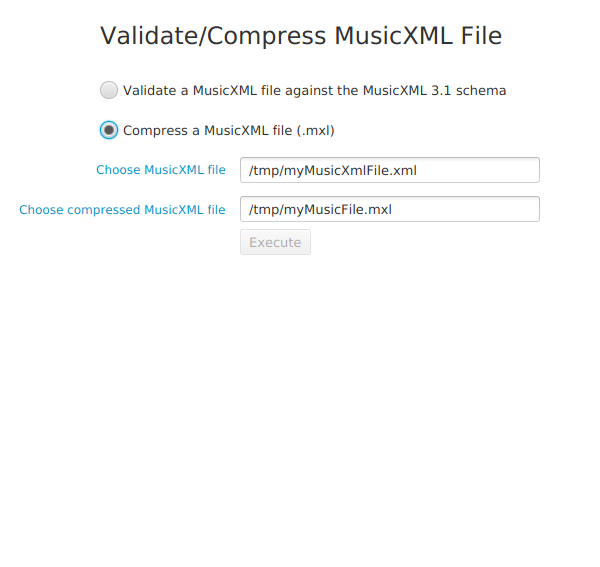
MusicXML Validation
XML validation verifies that an XML document is well-formed (syntactically correct), and that the document conforms to the rules defined in the MusicXML schema.
Validation can be performed on both partwise and timewise MusicXML files.
Validation can be performed on compressed (.mxl) and uncompressed (.xml, .musicxml) files.
When validation is performed, the XML file is first read and then loaded as an XML document. The document is then validated using a SAX (Simple API for XML) parser.
The XML parser is included in the application, and validation error messages are those of the parser.
XML Validation on Windows
Validation uses the encoding indicated by the encoding attribute of the XML declaration, by default
UTF-8.
In some cases, validation will fail when the encoding is given as
UTF-8,
and issue an error of this type:
Invalid byte 2 of 3-byte UTF-8 sequence
Usually, manually changing the encoding attribute value to
ISO-8859-1 will result in a successful validation.
Validation Steps
To validate a MusicXML file:
- Select the "Validate/Compress XML" tab at the top of the tool.
- Select the "Validate..." radio button option
- Click on the "Choose MusicXML file" link, navigate to the MusicXML file you want to validate, and select it.
- Press "Execute".
You can also enter the XML file name directly in the text box. The file name must be fully-specified (it includes the full directory path where the file is located).
Output examples
Successful validation:

Ill-formed XML document:

Missing a required element:

Missing a required attribute:

Extraneous or misspelled element:

MusicXML Compression
Any .xml or .musicxml file can be compressed into a .mxl file.
The compressed file will contain the original XML file, and a META-INF/container.xml file that references the included XML file.
To compress an XML file:
- Select the "Validate/Compress XML" tab at the top of the tool.
- Select the "Compress..." radio button option
- Click on the "Choose MusicXML file" link, navigate to the MusicXML file you want to compress, and select it.
-
Click on the "Choose compressed MusicXML file" link, and either:
- navigate to the location of a compressed file, and select it
- navigate to the desired output directory, and enter the name of the compressed file
- Press "Execute".
You can also enter a file name directly into either text box.
The file name must be fully-specified (it includes the full directory path where the file is located).